Your picture, your palette
Reduce an image to a set of matching colors and outlined regions. Choose fewer shades for an easier weekend project.
Turn your own photo into a paint by numbers pattern for free. Choose the colors and detail, preview your numbered outline, and download a printable PDF with a matching color guide.
Your photo stays on this device
Drop a photo here
JPG, PNG or WebP, up to 12 MB
No account or payment needed · Your photo stays private
Made for little creative afternoons, thoughtful gifts and your next painting project.
Made for the joy of making
An easy way to create a personal painting project without tracing, numbering or choosing every color yourself.
Reduce an image to a set of matching colors and outlined regions. Choose fewer shades for an easier weekend project.
Get a numbered outline, color reference and palette in one PDF. Choose A4 or US Letter to suit your printer.
Your photo is turned into a pattern in your browser. It isn't sent to a server, and you don't need an account.
A simple creative process
Three steps from a picture on your screen to a printable painting guide.
Upload a favorite photo or begin with one of our sample pictures.
Crop or rotate if needed, then choose how many colors to use and how much detail to keep.
Check the numbered and color views, then download a PDF with its matching color guide.
Make it easier to paint
More colors can preserve subtle shades, but often create smaller areas. Fewer colors make a simpler project and may lose fine detail. The best choice depends on your photo and your patience.
Try these settingsThese ranges are suggestions, not guarantees. Start with 20 colors and More Detail, then try Easier to Paint or fewer colors if the numbered shapes look too small.
Begin with inspiration
Want to try it first? Choose one of these sample photos, then select Create my template to see a numbered version. You can also upload your own photo.
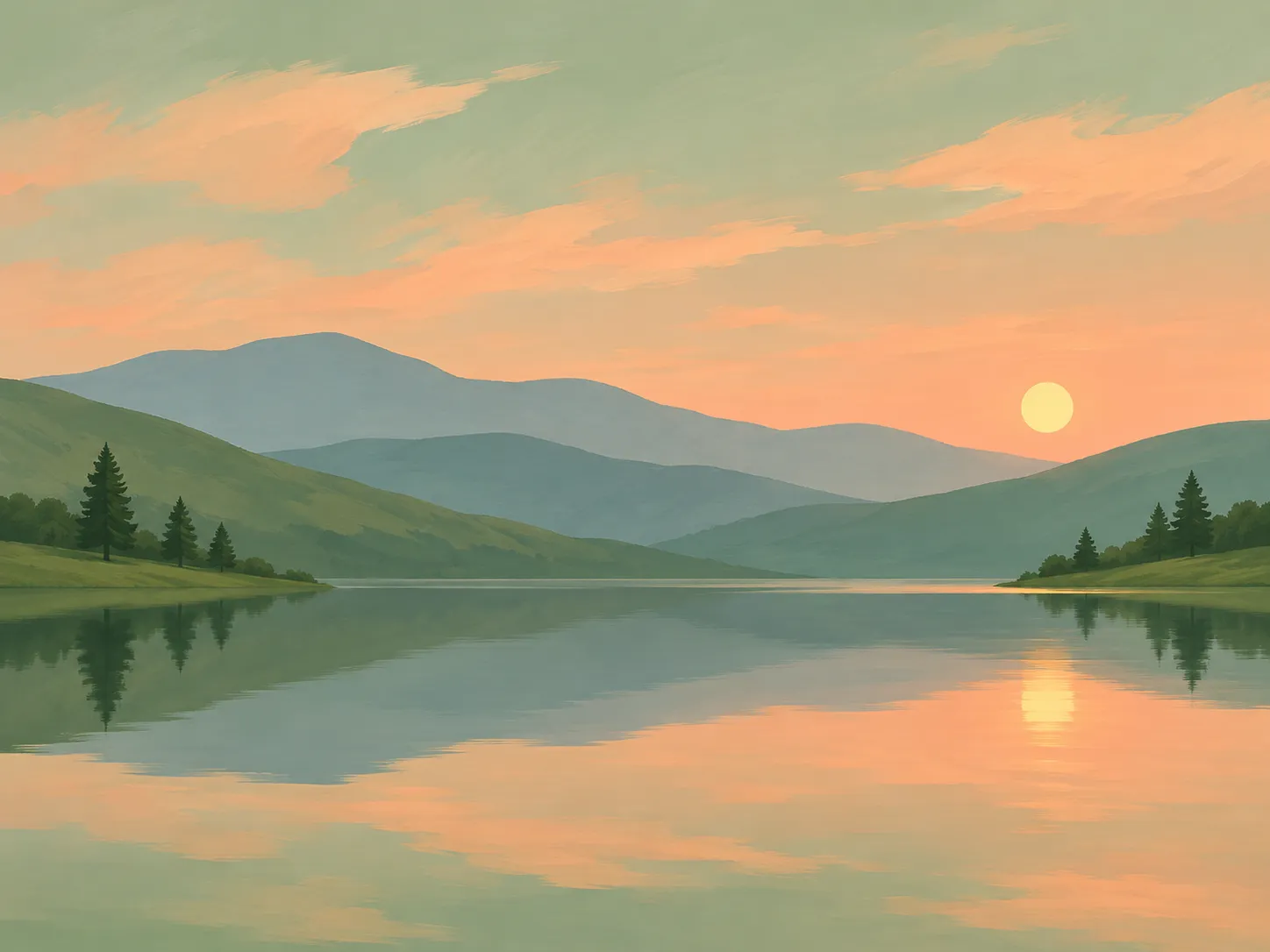
Landscape photo · Sample
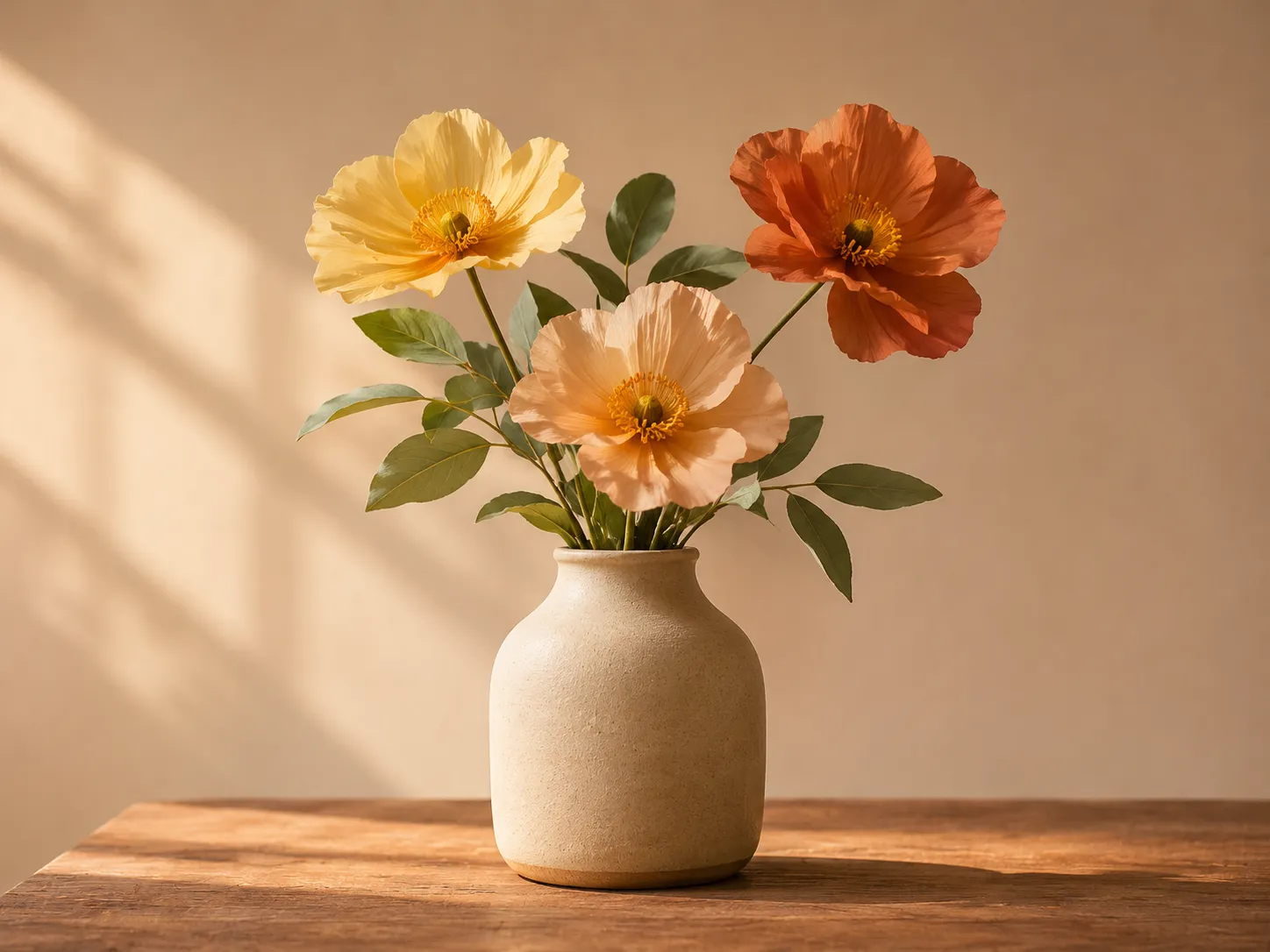
Still life photo · Sample
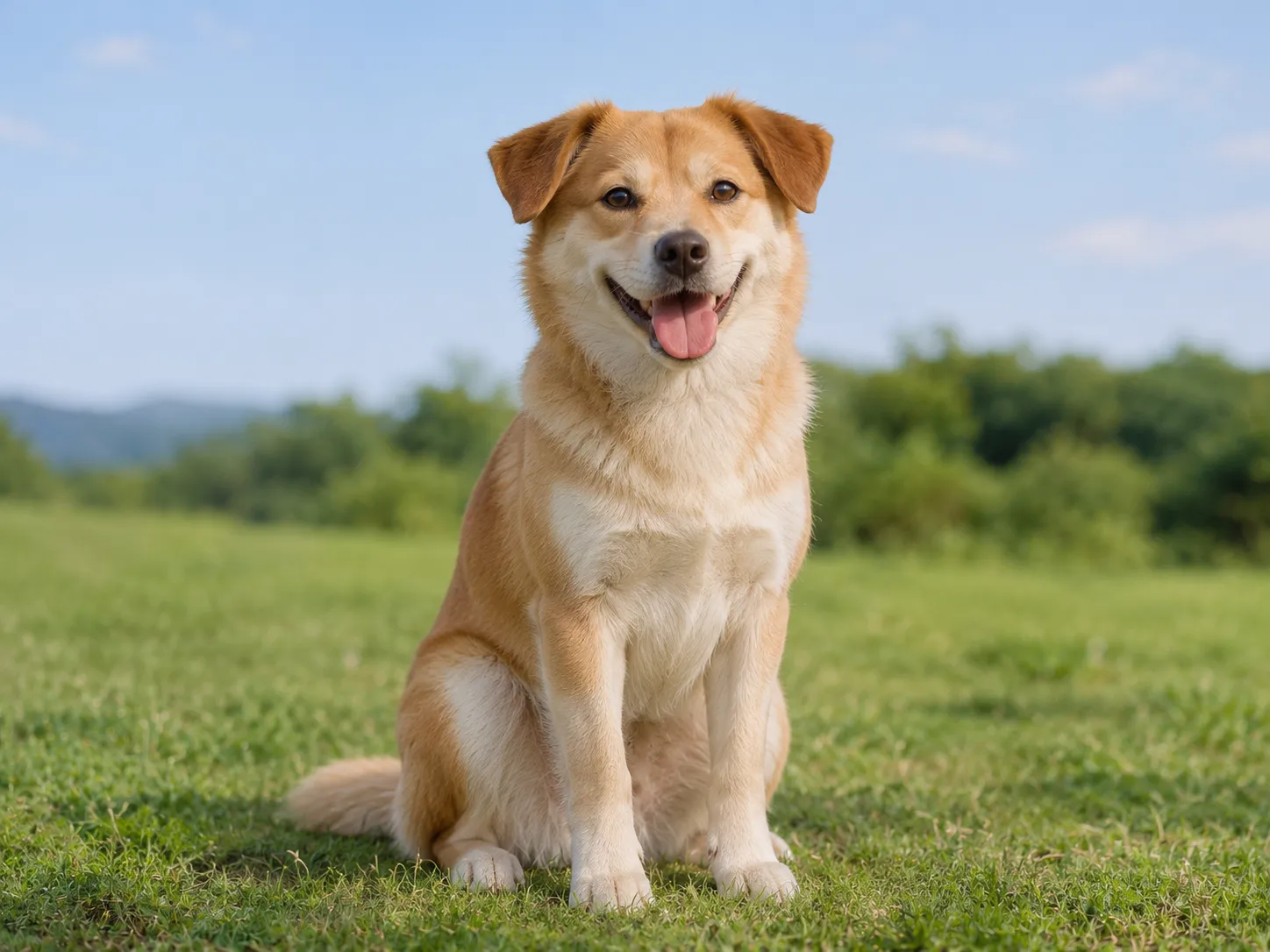
Pet photo · Sample
These photos are input samples, not finished paintings or precomputed numbered templates.
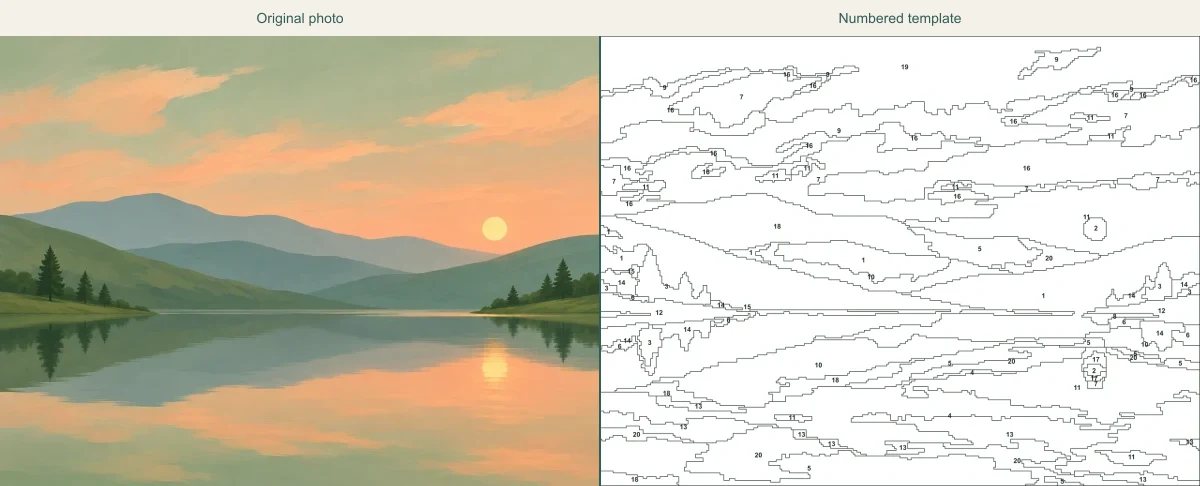
Choose a picture that paints well
The clearest results usually start with a well-lit subject and a simple background. Different photos need different amounts of detail, so try these settings as a starting point.
Keep the eyes and nose clear. A close crop and a quiet background help your pet stay recognizable.
Try first
16–24 colors · More Detail
Fine fur may create lots of tiny shapes.
Use even lighting and keep faces large enough to recognize. A close portrait usually works better than a distant group.
Try first
20–24 colors · More Detail
Small facial features and shadows may merge.
Look for a strong horizon or mountain outline. Broad areas of sky and water are easier to paint.
Try first
16–24 colors · More Detail
Leaves and grass can turn into narrow regions.
Choose a prominent flower with a simple background. Clear petals are easier to follow than tightly overlapping stems.
Try first
8–16 colors · Easier to Paint
Similar shades of petals may merge together.
Before you upload
You don't need a professional camera. A few adjustments to your photo can make the finished pattern easier to recognize and paint.
Keep faces, pets or flowers large in the picture. The Square crop in the generator is centered, so crop off-center subjects on your device first.
Pictures with a clear difference between the subject and background tend to produce more recognizable shapes than dark or blurry images.
Busy leaves, hair, text and distant faces can become thin regions. Try a tighter crop or fewer colors if the outline looks crowded.
Before you print
Use these four checks before making your final PDF. Small adjustments now can save you from a pattern that is hard to paint.
Switch to Color view and look at it at normal size. The pet, face, flower or landscape should still be easy to recognize.
If not: Try a closer crop, a sharper photo or a few more colors.
Look at Numbered view. Hair, grass and crowded backgrounds may create very thin regions.
If not: Choose Easier to Paint or fewer colors, then generate again.
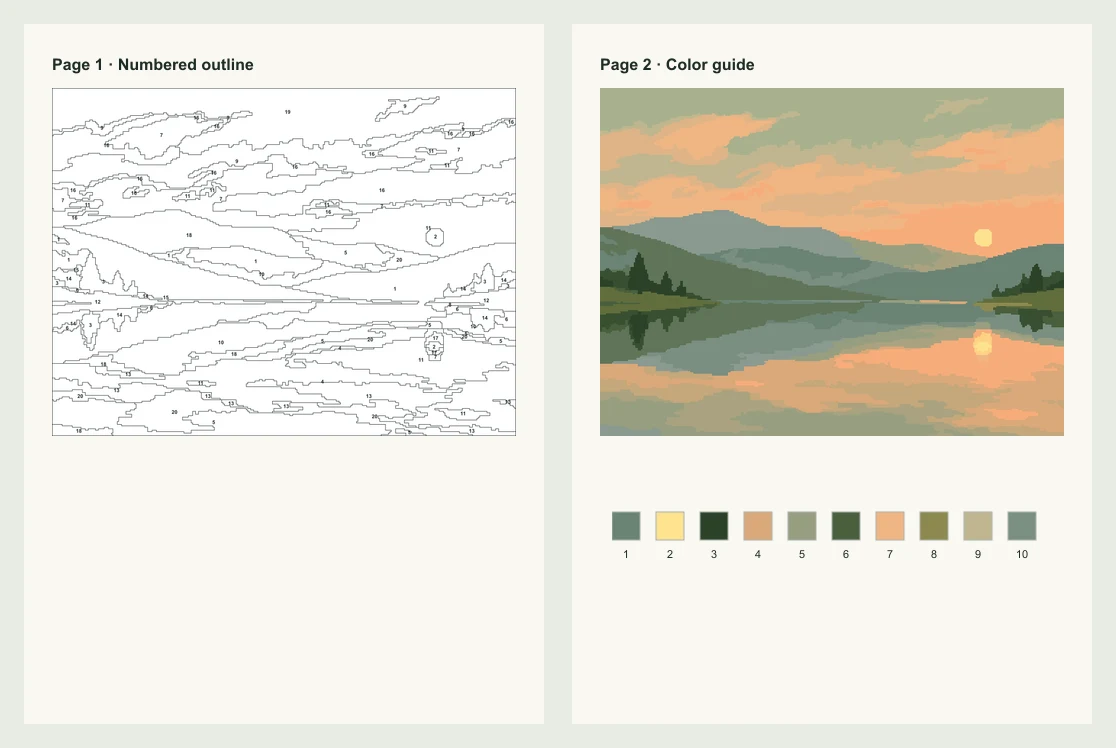
The outline numbers refer to the numbered swatches on page two of the PDF. Very small shapes may not have room for a label.
If not: Simplify the photo if too many regions are difficult to identify.
Download your A4 or US Letter PDF, open print preview and check the margins and smallest numbers at the size you plan to print.
If not: If the pattern is crowded, reduce detail before making a new PDF.
Your color guide uses digital swatches and HEX codes. Match your own paint colors separately; the download does not include paints or canvas.
Keep the creative part
The PDF includes two pages: a numbered line drawing and a color reference with matching swatches and HEX codes. You can also download either preview as a PNG.
Numbered outline and color reference
A4 or US Letter paper sizes
PDF and PNG file options
After your PDF is ready
Print the numbered outline and keep the color key nearby. Want to paint on canvas, choose brushes, or match real paint colors? Follow our full hands-on tutorial.
A paint by numbers generator turns an image into outlined regions with numbers inside them. Each number matches a color in a guide, so you can recreate your picture one area at a time. Our free paint by numbers creator lets you adjust the palette and detail, then save the results as a printable design.
If the result isn't quite right
Start with the thing you want to improve: the shapes, missing numbers, recognizable features or colors.
Fine fur, leaves, grass and busy backgrounds break up into small areas.
Try this: Start with 12–16 colors, Easier to Paint and a closer crop. Check that the main subject still looks right.
A narrow shape may be too small to hold a readable label.
Try this: Reduce the color count or use Easier to Paint. Some tiny areas may still remain unlabeled.
Small features or subtle shadows can disappear when the photo is simplified.
Try this: Try a clearer, well-lit photo or crop closer to the subject. Add colors gradually and compare the previews.
The design uses fewer shades than your original picture.
Try this: Try a few more colors, then check whether the numbered regions are still large enough to paint.
Good to know
Yes. You can create numbered templates and download PDF or PNG files without an account or payment.
Choose a JPG, PNG or WebP image, crop or rotate it if needed, adjust the color count and detail, then select Create my template. Check the numbered and color previews before downloading.
Upload a JPG, PNG or WebP image up to 12 MB. Or choose a built in sample photo to try the tool without using your own picture.
Yes. Choose A4 or US Letter. Page one has the numbered outline; page two has the color reference and matching numbered swatches. Check the print preview before using it.
Try 8 to 12 colors with Easier to Paint for broad shapes, or start with 20 colors and More Detail for finer features. The photo matters as much as the settings, so compare your preview before printing.
Very small or narrow shapes may not have enough space for a readable number. Try Easier to Paint, fewer colors or a tighter crop, then generate again. You cannot add missing numbers by hand in the tool.
The guide shows approximate digital colors and HEX codes, not exact acrylic paint brands or mixing recipes. Match the shades by eye and test a small swatch.
Start with a well lit photo that has a clear subject and a simple background. A single pet, flower or landscape is usually easier than a busy group photo with many small details.
No. Your chosen image is converted in your browser on your device. The tool does not upload it to an image processing service.
You can download your PDF or PNG, but you cannot save a project to reopen later or change individual numbered shapes. If you refresh the page, choose your image and generate it again.
Yes. Switch the preview between Numbered and Color, then use PNG to save the current view. The PDF always includes a numbered outline and a separate color reference page.
Yes, but small faces may lose detail. Choose a well-lit photo and crop closer to the people if the faces are hard to recognize.
The Square crop is centered. If your subject is near one side, crop the image on your device before uploading it.
The generator accepts JPG, PNG and WebP, not HEIC. Save or convert your photo to JPG first, then upload the new file.
No. The PDF includes the numbered outline and a colored version with its number key. Keep the original photo separately if you want to refer to it.
Make a numbered template from your own photo and download it for free.